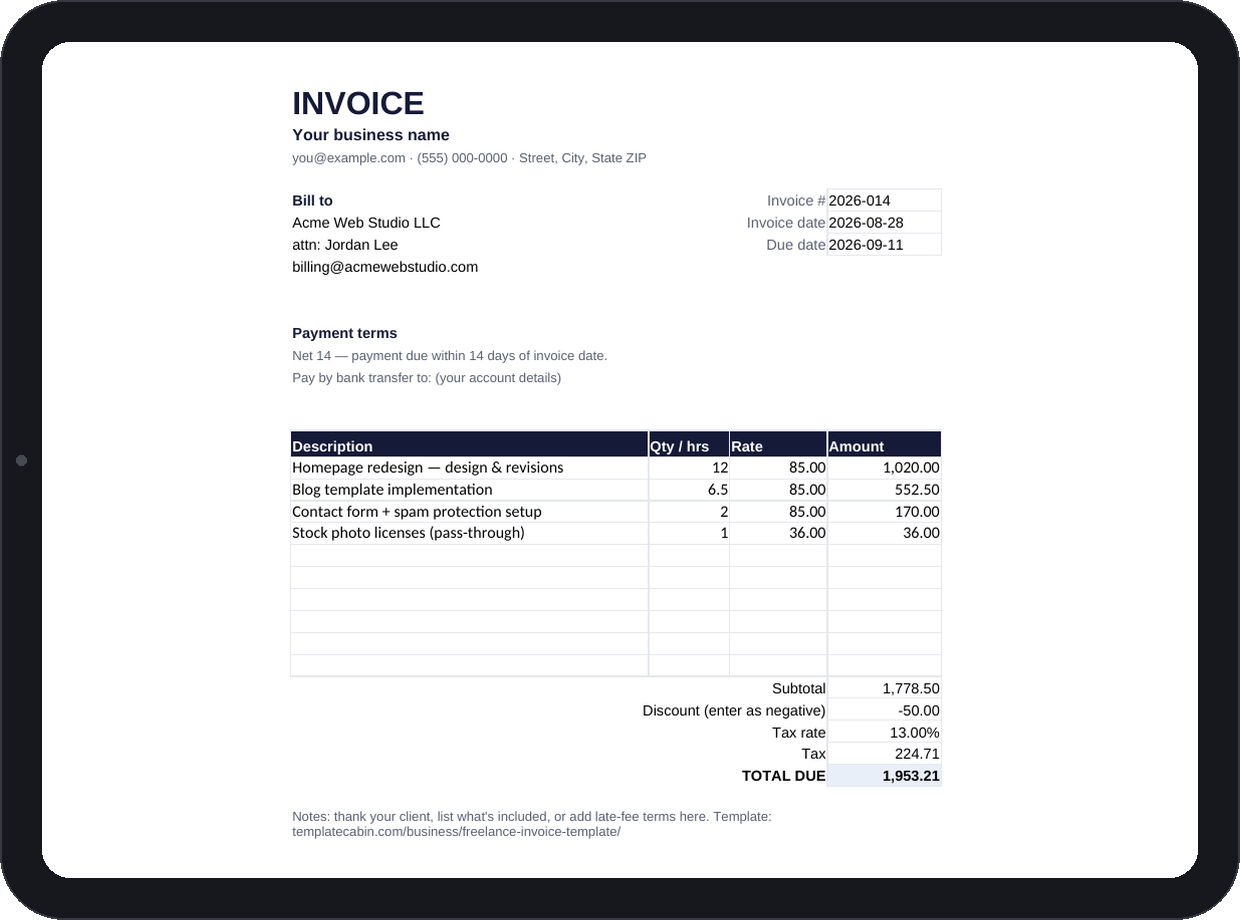
The gap between finishing a project and getting paid for it usually comes down to small friction, not big problems: a due date buried in a paragraph instead of stated plainly, a client’s bookkeeper hunting for a field that isn’t where they expect it, a total that doesn’t quite add up because the tax was applied before the discount instead of after. This template removes that friction rather than adding more design to a problem that was never about design.
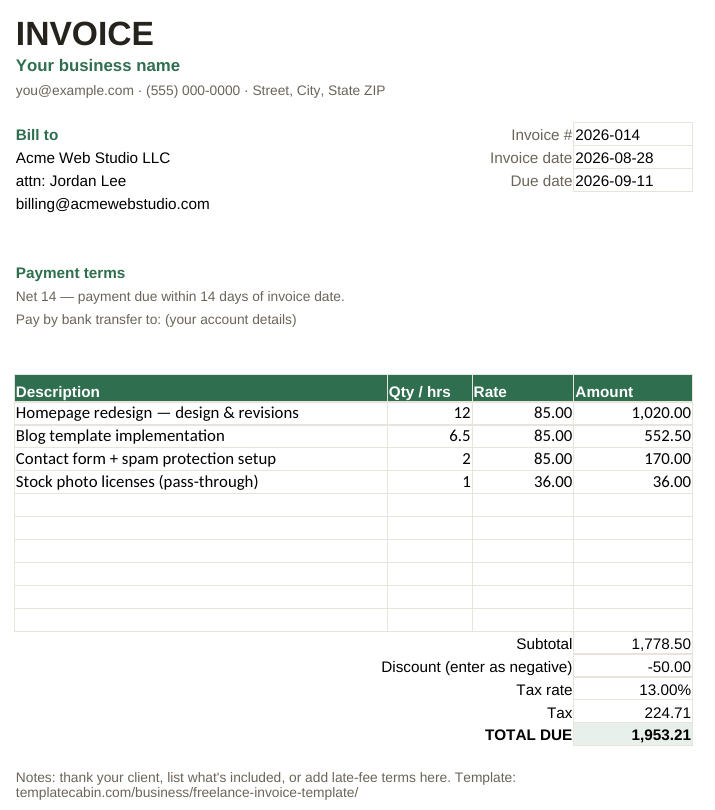
Ten line-item rows compute quantity times rate as you type, with no error text flashing while a row is half-filled. The totals block runs subtotal, discount, then tax applied after the discount (the standard order, and the one that matches what most bookkeeping software expects), ending in a total due that’s visually impossible to miss. Payment terms sit near the top of the page, in the spot people actually read before they read anything else.
The worked example carries real numbers so you can see the math instead of taking it on faith: 20.5 hours of design work at $85 an hour plus a $36 pass-through cost, a $1,778.50 subtotal, a $50 discount, and 13% tax applied after that discount, landing on $1,953.21 due. Every one of those numbers is computed live by the formulas in the sheet, not typed in as a static example, and we checked each one independently before publishing.
Three habits move an invoice from “eventually” to “paid this week.” State an actual date, “Due September 11,” not just terms like “Net 14” that require the client to do math. Send the invoice the same day you finish the work, since the gap between delivery and invoice date is one of the better predictors of how late payment ends up being. And spell out exactly how you want to be paid in the payment block, because every invoice that triggers a “wait, how do I send this?” reply just added a few days to the wait.
To use it for a new invoice, duplicate the Invoice tab and number it something sequential like 2026-014, so one file holds your whole billing history instead of a folder of loose documents. It works identically in Google Sheets (File, Import, Upload, then “Replace spreadsheet”), and adding rows is as simple as inserting between the first and last line item; the subtotal range expands to catch them automatically. For flat-fee work, use quantity 1 with the fee as the rate, or one line per milestone if the project has stages.
If you’re not confident the rate on this invoice is actually right, the hourly rate calculator is built for exactly that question. Whether to charge tax at all depends on where you and your client are, so this template handles the math without pretending to give tax advice; enter 0% if it doesn’t apply to you and check your local rules either way. Free for business use, no signup, and if a formula ever looks wrong, tell us and we’ll retest and fix it.
Grab the file and follow the setup steps above. It takes about two minutes.
Download the invoice template (.xlsx)