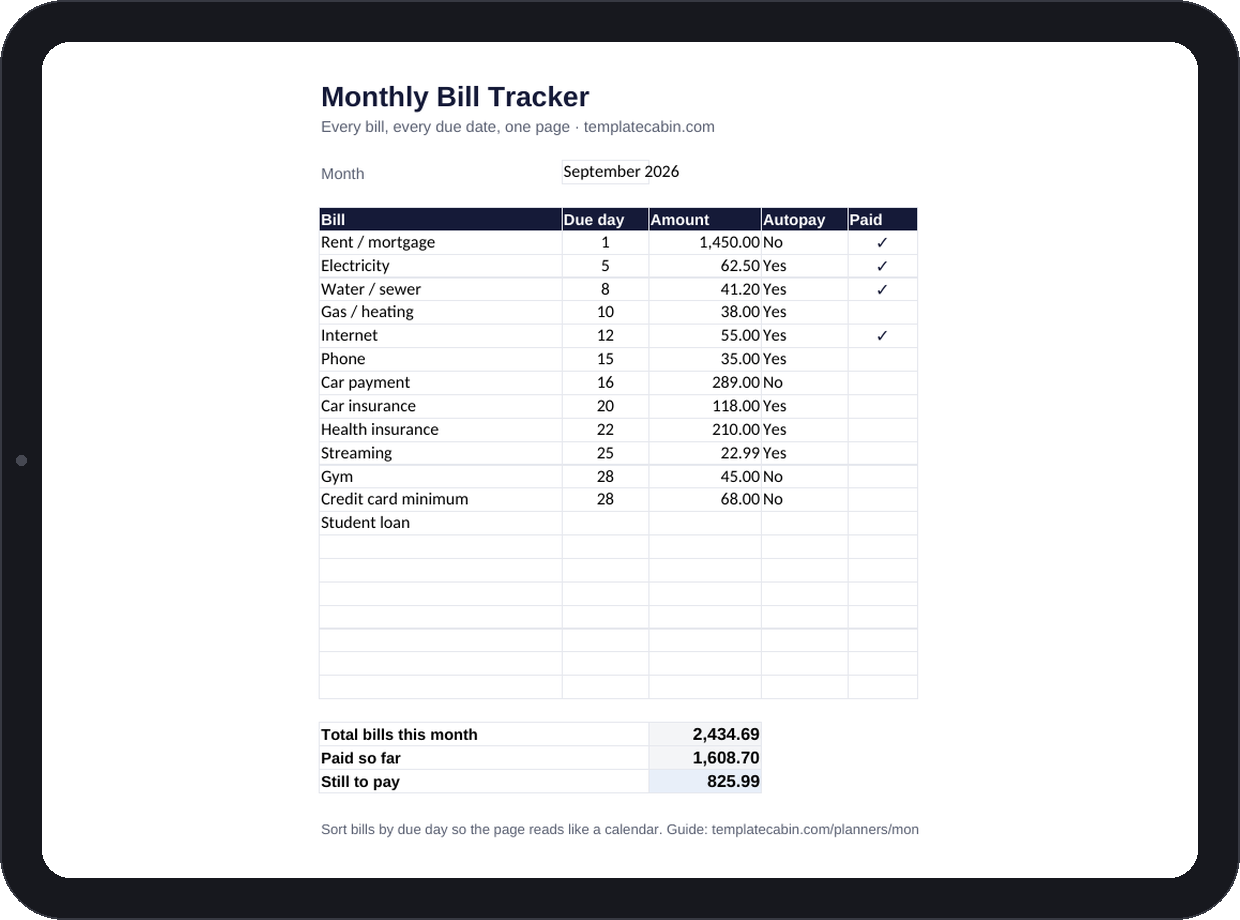
Late fees are one of the most avoidable expenses in any budget, and they almost never happen because the money wasn’t there. They happen because a due date lived in nobody’s head on the day it mattered. This tracker fixes that by putting every bill on one page, sorted by due day, with a checkmark for the ones that are actually handled.
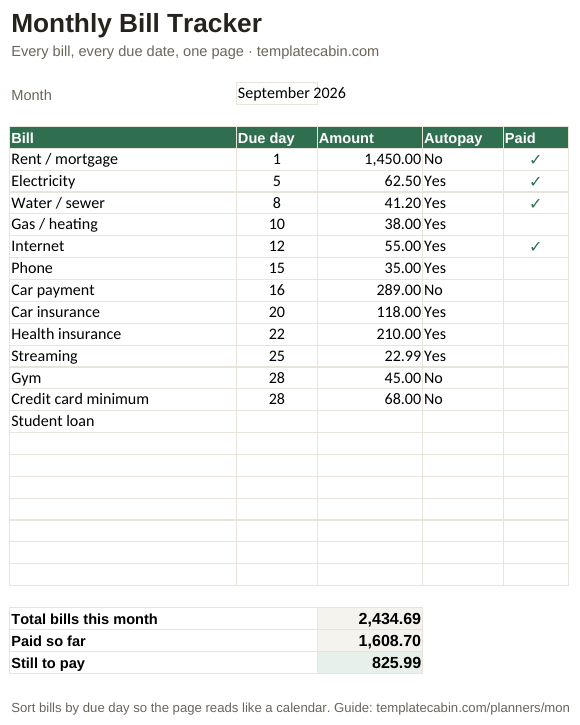
Each row holds a bill name, due day, amount, whether it’s on autopay, and a paid checkbox, with thirteen common bills pre-filled so the first setup takes minutes instead of an evening. Three totals update live as you check things off: total bills, paid so far, and what’s still outstanding. Sorted by due day, the page reads almost like a calendar: rent on the 1st, utilities early in the month, cards later.
The autopay column earns its place on the page even though it doesn’t touch the deduction math anywhere else on the site. It marks your manual-payment surface, which is where the actual late-fee risk concentrates, and doubles as a quiet quarterly audit of everything with your card on file. If a row makes you stop and think “wait, I still pay for that?”, the template just paid for itself, and that discovery belongs in the subscription tracker next. In the example, mid-month totals show $1,608.70 paid against $2,434.69 in bills, with $825.99 still outstanding, numbers that were checked independently before publishing.
Mark autopay honestly rather than aspirationally; in the example, only four bills still need a human, and that short list is exactly where a missed payment tends to happen. Check bills off as they clear rather than all at once at month’s end, since that’s what makes the running totals actually useful mid-month. For a new month, duplicate the tab and clear the Paid column; amounts and due days carry straight over. It works the same in Google Sheets (File, Import, Upload, then “Replace spreadsheet”), and prints cleanly to one portrait page if you’d rather keep the spreadsheet as the master copy and a printed page on the fridge for the satisfaction of a pen checkmark.
Bills that vary month to month, like electricity, can take last month’s number as a placeholder until the real bill lands; the point isn’t a perfect estimate, it’s that the due date itself never surprises you. Quarterly and annual bills fit more naturally in a sinking fund, which keeps this page cleanly monthly. Free, no signup, for personal or commercial use. Formula issue? Tell us and we’ll retest and fix it.
Grab the file and follow the setup steps above. It takes about two minutes.
Download the bill tracker (.xlsx)