Free Biweekly Budget Template (Excel & Google Sheets)

Get the template

Built in-house and tested before publishing. No signup required.

Download the biweekly budget template (.xlsx)

If you’re paid every two weeks, a monthly budget template quietly works against you. Your money doesn’t arrive monthly โ€” it arrives in paychecks โ€” and stretching two (sometimes three) paychecks across one monthly grid is where most budgets fall apart.

This template flips the frame: one budget per paycheck. Each pay period gets its own sheet with four sections โ€” income, bills due in this period, everyday spending, and savings โ€” and a single number at the bottom that tells you whether the plan balances: Left to assign.

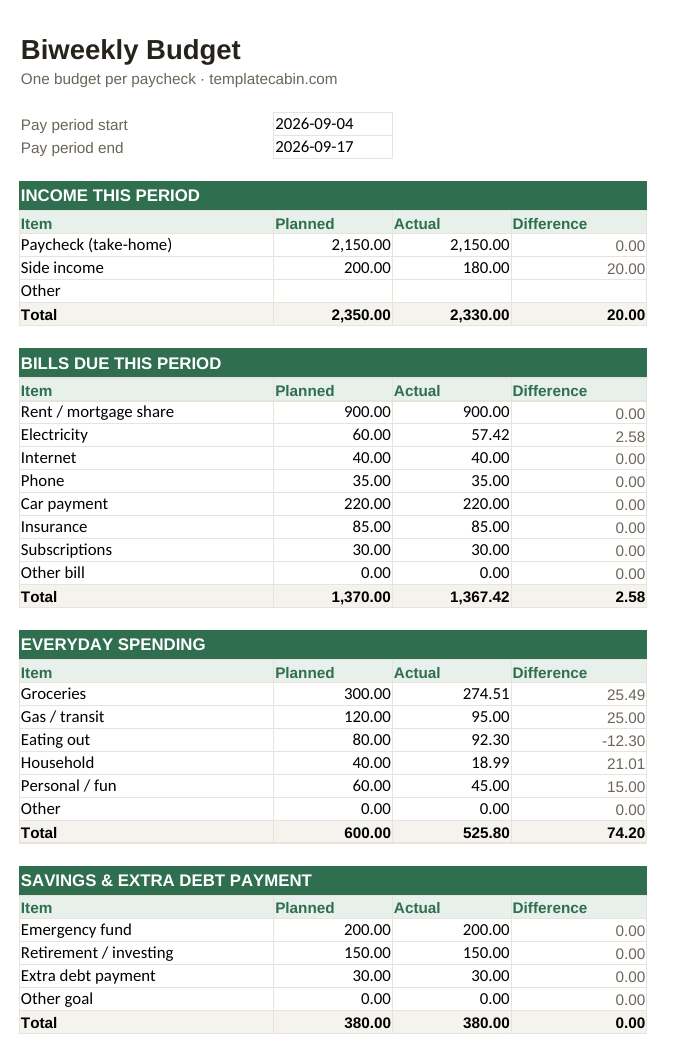
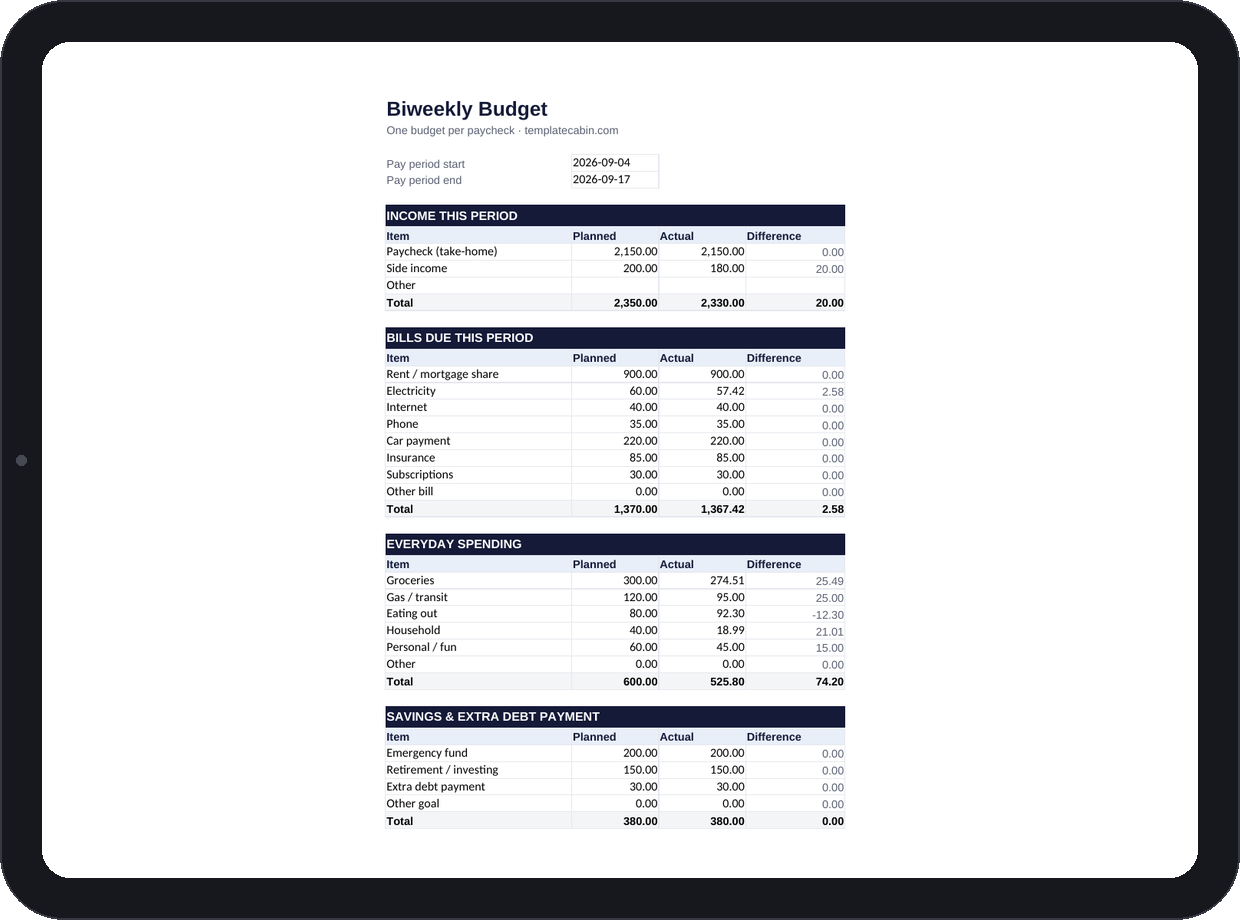
We built this file from scratch and verified every formula by running a full example budget through it before publishing. The example below uses the exact numbers you’ll find in the “Example (filled in)” tab of the download.

The biweekly budget template filled in with a complete example pay period

Why budget per paycheck instead of per month?

Three practical reasons:

Bills don’t care about your pay schedule. Rent is due on the 1st whether your paycheck lands on the 29th or the 3rd. When you budget per paycheck, you assign each bill to the specific paycheck that will pay it, so a due date can never fall in a gap.

Biweekly pay means two “extra” paychecks a year. 26 paychecks รท 2 does not equal 12 months. Twice a year you get a third paycheck in a month, and monthly templates simply have no row for it. A per-paycheck budget treats it like any other period โ€” which is exactly why those two paychecks are the easiest savings win of the year.

Two weeks is a horizon you can actually predict. You may not know what you’ll spend on groceries this month, but you have a pretty good idea about the next 14 days.

How the template works

The download has two tabs: Paycheck Budget (blank, ready to use) and Example (filled in) so you can see a complete period before entering your own numbers.

1. Income this period

Enter your take-home pay โ€” what actually hits your bank account โ€” plus any side income you expect during the two weeks. In the example: a $2,150 paycheck plus a planned $200 of side income ($180 actually arrived).

2. Bills due this period

Only list bills with a due date inside this pay period. The example period covers Sept 4โ€“17, so it carries the $900 rent share, a $220 car payment, $85 insurance, and utilities โ€” $1,370 planned in total. The electricity bill came in at $57.42 against a $60.00 plan, and the Difference column shows the $2.58 you got back automatically.

3. Everyday spending

Groceries, gas, eating out โ€” the flexible categories. This is the section you’ll actually update during the two weeks. In the example, eating out ran $12.30 over plan ($92.30 actual vs $80.00 planned) while groceries came in $25.49 under. That’s normal; the point isn’t to hit every line exactly, it’s to see the trade-offs while they’re happening.

4. Savings and extra debt payments

Treat savings like a bill: $200 to the emergency fund, $150 to investing, $30 extra on debt in the example. If you only save “whatever’s left,” the answer is usually nothing โ€” this section is the fix.

The number that makes it work: Left to assign

At the bottom, the summary computes:

Left to assign = Income โˆ’ Bills โˆ’ Everyday spending โˆ’ Savings

Fill in the Planned column until this number reads exactly 0.00. That’s zero-based budgeting: every dollar of the paycheck has one job before the period starts. The cell turns green at zero or above and red if you’ve planned more than you earn.

Summary section showing Left to assign at 0.00 and actual money left of 56.78

The summary also tracks reality alongside the plan: in the worked example, actual spending and saving came to $2,273.22 against $2,330 of actual income, leaving $56.78 unspent at the end of the period โ€” money you can roll into next period’s savings line.

Using it in Google Sheets

The file is a standard .xlsx and converts cleanly:

  1. Open Google Sheets and create a blank sheet.
  2. File โ†’ Import โ†’ Upload, choose the downloaded file.
  3. Select Replace spreadsheet and import. All formulas and the red/green highlighting carry over.

For each new pay period, right-click the “Paycheck Budget” tab and Duplicate it, then rename it to the period dates (e.g., “Sep 18 โ€“ Oct 1”). After a few months you’ll have a season of paychecks side by side โ€” which is where the interesting patterns show up.

Making it yours

A few edits we recommend, all safe to do:

Rename any item row. The labels (“Groceries”, “Phone”) are plain text โ€” change them freely. The totals use SUM over the whole section, so your numbers still count.

Add rows inside a section. Insert the new row between the first and last item of a section (not directly above the Total row) and the SUM range expands automatically.

Splitting monthly bills across two paychecks? Some people prefer paying half the rent from each check. Just enter the half amount ($450 instead of $900) in both periods’ budgets โ€” the template doesn’t care how you split, only that each period balances.

Frequently asked questions

Does this work if my paycheck amounts vary? Yes โ€” that’s actually where per-paycheck budgeting is strongest. You budget each period from the real number, not a monthly average that’s wrong half the time.

What about annual bills like car registration? Add a “sinking fund” line in the Savings section (e.g., $15 per paycheck toward registration). When the bill arrives, it’s already funded.

Is the template really free? Yes. Free for personal and commercial use, no signup, no locked version. The site is supported by ads. If you spot an error in any formula, tell us โ€” we re-test and fix.

Ready to use it?

Grab the file and follow the setup steps above โ€” it takes about two minutes.

Download the biweekly budget template (.xlsx)